Supported products
Supported products
Required Scopes
Required Scopes
Create a custom object
To create a custom object, you’ll first need to define the object schema. The schema includes the object name, properties, and associations to other CRM objects. To define the custom object, make aPOST request to crm-object-schemas/2026-09/schemas. In the request body, include definitions for your object schema, including its name, properties, and associations. Include the following fields in your request:
Below, learn more about the defining the object’s properties and associations. Review a full walkthrough example of defining a custom object.
Properties
In theproperties object, create the properties that will store information on individual custom object records. By default, when creating properties through the schema request, property type is set to string and the fieldType is set to text. Learn more about the types of properties you can create on the properties API guide.
Use your defined properties to populate the requiredProperties, searchableProperties primaryDisplayProperty, and secondaryDisplayProperties fields.
Associations
Custom objects automatically have associations defined with emails, meetings, notes, tasks, calls, and conversations, so you can associate custom object records with activities. To associate custom object records with other object records, you must define those associations in the schema. In the create schema request, include theassociatedObjects field with the objectTypeId values of objects with which you want to associate your custom object.
For example, the following custom object can be associated with contacts, companies, and another custom object’s records.
Retrieve existing custom object schemas
To retrieve all custom object schemas, make aGET request to /crm-object-schemas/2026-09/schemas.
To retrieve a specific custom object schema, make a GET request to one of the following:
/crm-object-schemas/2026-09/schemas/{fullyQualifiedName}/crm-object-schemas/2026-09/schemas/{objectTypeId}
fullyQualifiedName (formatted as p{Hub_ID}_{object_name}) and objectTypeId in its schema. You can find your account’s Hub ID using the account information API.
For example, for an account with a Hub ID of 1234, to retrieve an object named lender with the objectTypeId value 2-7282133, your request URL could look like either of the following:
/crm-object-schemas/2026-09/schemas/p1234_lender/crm-object-schemas/2026-09/schemas/2-7282133
Update an existing custom object schema
To update an object’s schema, make aPATCH request to /crm-object-schemas/2026-09/schemas/{objectTypeId}.
Once your custom object is defined:
- The object’s
namecannot be changed via API. - To set a new property as a required, searchable, or display property, you must create the property prior to updating the schema.
- To create and edit custom object properties, you can either manage properties in HubSpot or via the properties API.
Delete a custom object schema
To delete a custom object, make aDELETE request to /crm-object-schemas/2026-09/schemas/{objectType}. You can only delete a custom object after all records, associations, and properties are deleted.
If you need to create a new custom object with the same name as the deleted object, hard delete the schema by making a DELETE request to /crm-object-schemas/2026-09/schemas/{objectType}?archived=true.
Custom object example
The following is a walkthrough of creating an example custom object. This walkthrough covers:- Creating a custom object schema.
- Creating a custom object record.
- Associating a custom object record with a contact.
- Creating a new property definition.
- Updating the object schema (i.e.
secondaryDisplayProperties) with the new property.
Create the object schema
CarSpot needs to create an object schema that can represent the following attributes as properties:- Condition (new or used):
enumeration - Date received at dealership:
date - Year:
number - Make:
string - Model:
string - VIN:
string(unique value) - Color:
string - Mileage:
number - Price:
number - Notes:
string
POST request to /crm-object-schemas/2026-09/schemas with the following request body:
Create a custom object record
With the custom object schema created, CarSpot can now create records for each car in their inventory. Learn more about creating custom object records. They create their first car by making aPOST request to /crm/objects/2026-09/2-3465404 with the following request body:
id value to later associate the car with an existing contact. To later retrieve this record along with specific properties, they can make a GET request to /crm/objects/2026-09/2-3465404/181308?&properties=year&properties=make&properties=model.
Associate the custom object record to another record
CarSpot can use the ID of the new car record (181308) and the ID of another record to associate a custom object record with a record of another object.
To create an association, make a PUT request to /crm/objects/2026-09/{objectType}/{objectId}/associations/{toObjectType}/{toObjectId}/{associationType}. If the object relationship is already defined, to determine the associationType value, make a GET request to crm-object-schemas/2026-09/schemas/{objectType}.
For example, with the contact ID 51 and the association type 75, CarSpot can associate the car record with a contact. Using the above IDs, they’d make a PUT request to /crm/objects/2026-09/2-3465404/181308/associations/contacts/51/75
Define a new property
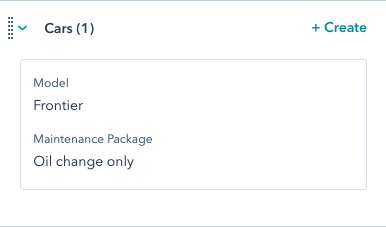
As they continue to track maintenance, CarSpot sees an opportunity to bundle maintenance services into packages. To track these maintenance packages on individual car records, they create a newenumeration property containing the available packages.
To define a new property, they make a POST request to /crm/properties/2026-09/2-3465404 with the following request body:
secondaryDisplayProperties by making a PATCH request to /crm-object-schemas/2026-09/schemas/2-3465404 with the following request body: