> ## Documentation Index
> Fetch the complete documentation index at: https://developers.hubspot.com/docs/llms.txt
> Use this file to discover all available pages before exploring further.
---
id: 4eda248a-97fb-4d3b-9c8a-27391a4cb3b1
---
# Create a bulk action (BETA)
> Create bulk actions that let users operate on selected CRM records.
You can create a React-based bulk action extension for your app on the `2026.09` version of the developer platform. Bulk actions let users perform operations on selected records directly from CRM object index pages. When a user selects records and triggers your action, HubSpot renders your custom React component as a modal or panel, with the selected record IDs and object type available in the extension context. You can also opt your action in to [select all](#support-select-all), so it can run on every record that matches the index page's filters.
This guide walks you through how to build a bulk action component using React and how to upload and preview it in HubSpot.
Before you begin, follow the [quickstart guide](https://developers.hubspot.com/docs/getting-started/quickstart.md) to create your first app on the latest version of the developer platform.
## Prerequisites
* Ensure you've installed the latest beta version of the [HubSpot CLI](https://developers.hubspot.com/docs/developer-tooling/local-development/hubspot-cli/install-the-cli.md).
* If you haven't done so yet, [create a new app](https://developers.hubspot.com/docs/getting-started/quickstart.md).
* In your project's `hsproject.json` file, set `platformVersion` to `2026.09`.
> [!WARNING]
>
> The latest version of the HubSpot CLI, which is recommended, is `8.16.0`. You can check which version of the CLI you have installed by running `hs --version`.
## Create a bulk action
**1. Add a bulk action component to your project**
To add a new bulk action component to an existing project:
1. Use the terminal to navigate into your local project directory, then run the following command:
```shell theme={null}
hs project add
```
2. When prompted to select a component to add, select **Bulk action**.
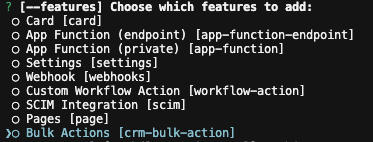
A new `actions/` directory will be created in the project's `src/app/` directory. The `actions/` directory will contain:
* A JSON configuration file (`*-hsmeta.json`)
* A React component file (`.tsx`)
* A `package.json` file
```shell theme={null}
myProject
└── src/
└── app/
└── actions/
├── NewAction-hsmeta.json
├── NewAction.tsx
└── package.json
```
> [tab] NewAction-hsmeta.json
>
> ```json theme={null}
> {
> "uid": "action_extension",
> "type": "crm-bulk-action",
> "config": {
> "label": "New Bulk Action",
> "entrypoint": "/app/actions/NewAction.tsx",
> "objectTypes": [
> "contacts"
> ],
> "displayMode": "PANEL",
> "icon": "forward"
> }
> }
> ```
> [tab] NewAction.tsx
>
> ```tsx theme={null}
> import React from "react";
> import { Text, hubspot } from "@hubspot/ui-extensions";
>
> hubspot.extend(({ context }) => );
>
> const BulkAction = ({ context }) => {
> return (
> Build your bulk action here!
> );
> };
> ```
> [tab] package.json
>
> ```json theme={null}
> {
> "name": "hubspot-example-extension",
> "version": "0.1.0",
> "license": "MIT",
> "dependencies": {
> "@hubspot/ui-extensions": "latest",
> "react": "^18.2.0"
> },
> "devDependencies": {
> "typescript": "^5.3.3"
> }
> }
> ```
**2. Upload to HubSpot**
To upload your bulk action to HubSpot:
1. Run `hs project install-deps` from within your local project directory to install necessary dependencies. This will create a `package-lock.json` file, which speeds up the build of the uploaded bulk action extension and ensures that any dependencies in your local development environment and production match.
2. Run `hs project upload`.
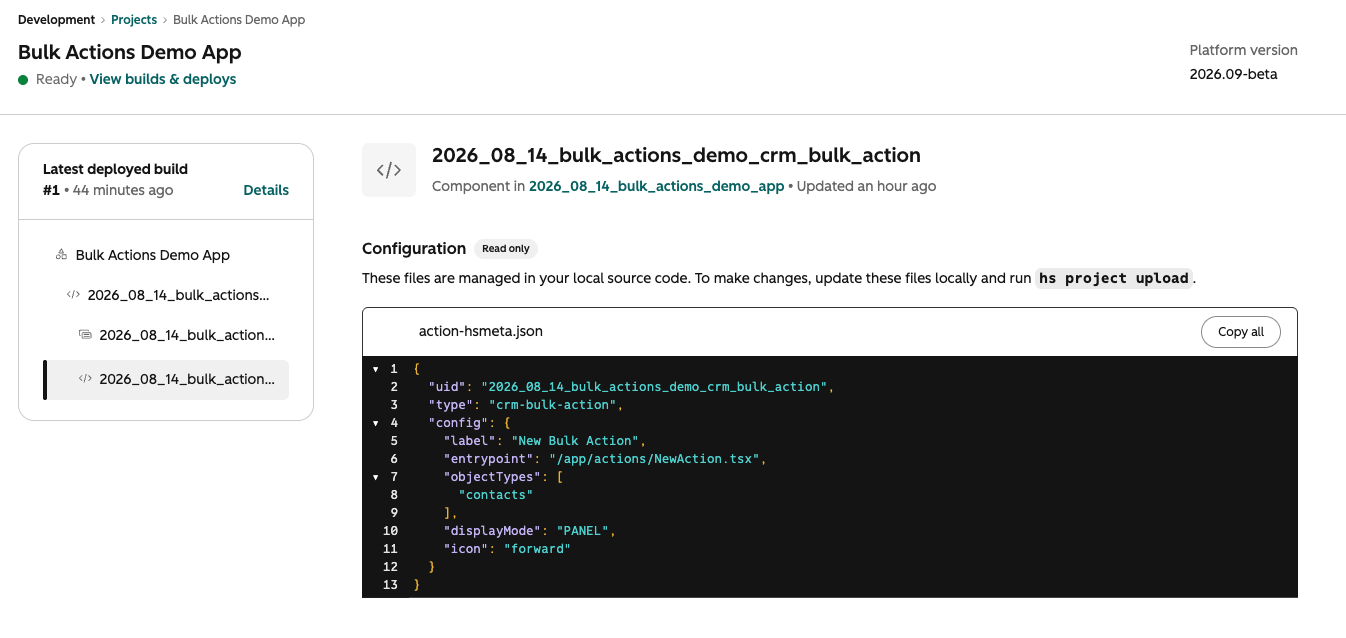
3. After the project finishes deploying, open the project in HubSpot by running `hs project open`. Alternatively, in HubSpot you can navigate to **Development** > **Projects**, then click the **name** of your project.
4. Your bulk action component should now be listed on the details page.
## View the bulk action in HubSpot
To verify the bulk action is working correctly:
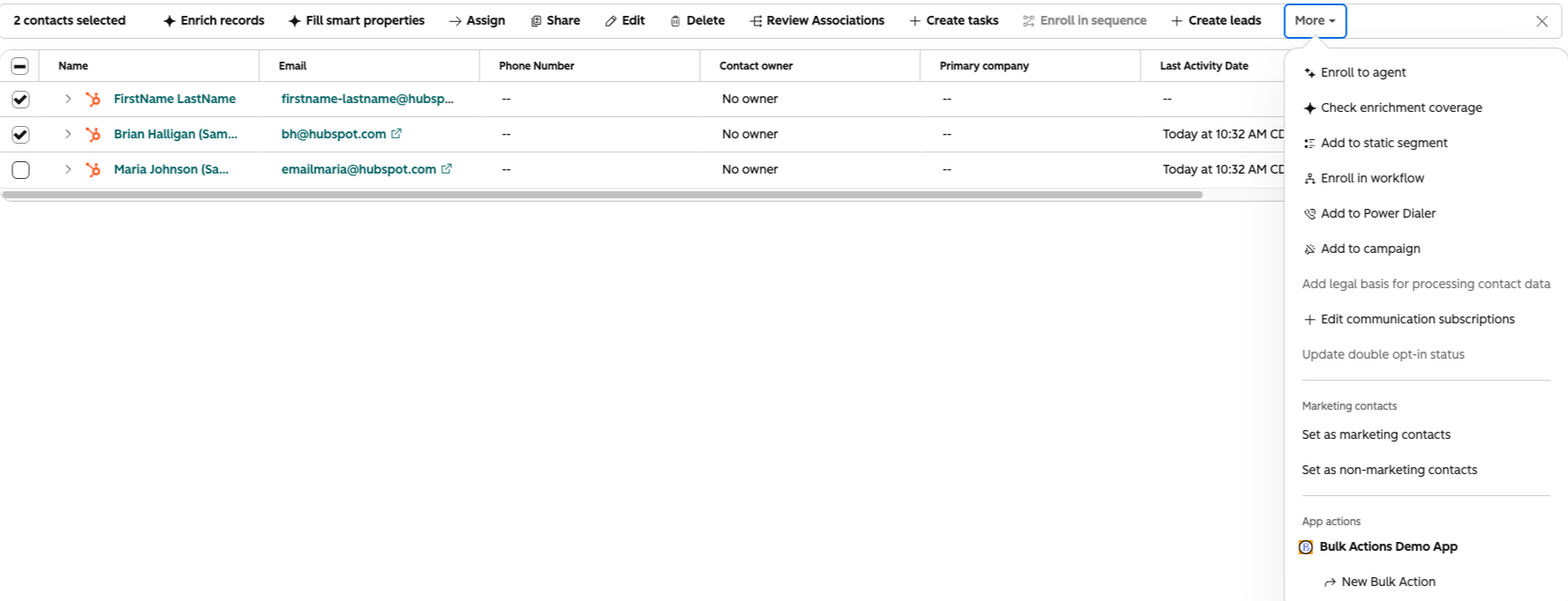
1. In your HubSpot account, navigate to a CRM object index page. For example, navigate to **CRM** > **Contacts**.
2. Select the **checkboxes** of records for which to test bulk actions.
3. At the top of the table, click **More**.
4. Your bulk actions will be listed under your app's name at the bottom of the menu.
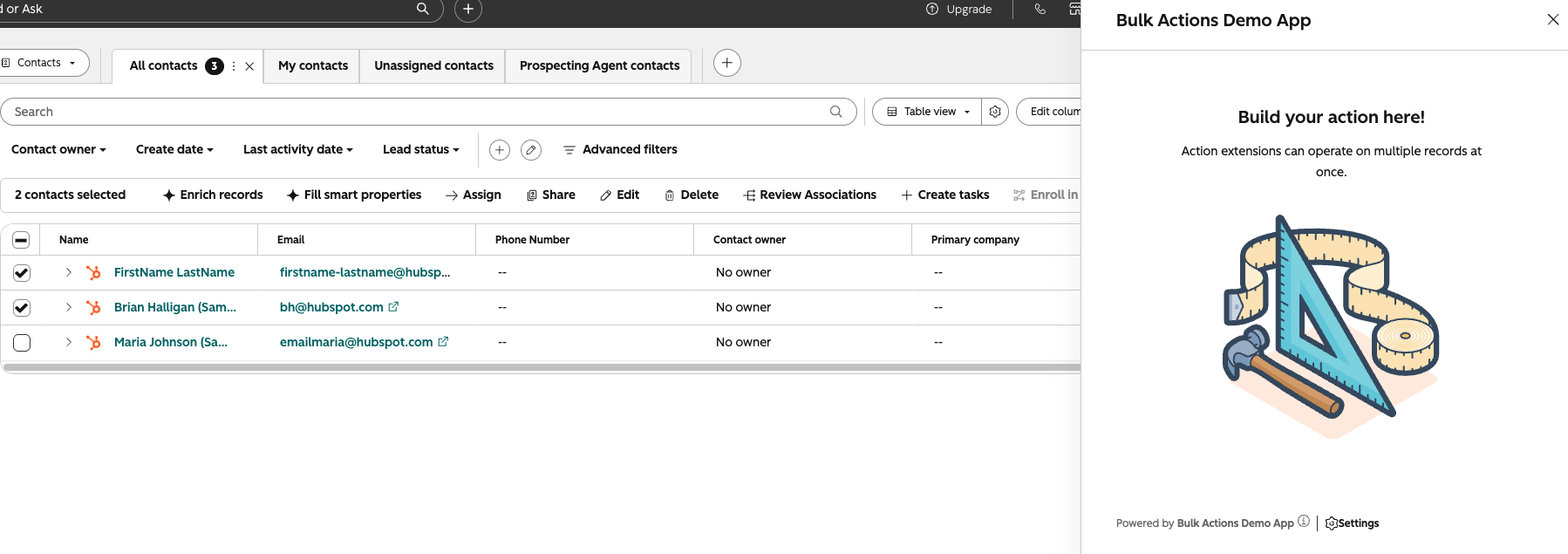
5. After clicking on your action's name, it will open as either a modal or panel (depending on how you configured it in the `hsmeta.json` file).
You can now continue to build out your bulk action as needed. You'll use the [UI extensions SDK](https://developers.hubspot.com/docs/apps/developer-platform/add-features/ui-extensions/ui-extensions-sdk/overview.md) to add functionality and visual elements to your component. Note that all the existing limitations around building UI extensions apply to building a bulk action.
* Use `hubspot.fetch()` to leverage your backend to retrieve and act on data. Learn more about [fetching data](https://developers.hubspot.com/docs/apps/developer-platform/add-features/ui-extensions/fetching-data.md) in UI extensions.
* Check out the reference documentation on [standard components](https://developers.hubspot.com/docs/apps/developer-platform/add-features/ui-extensions/ui-components/overview.md) for how to use React components when building your extension, or use the component in the [Figma Design Kit](https://developers.hubspot.com/docs/apps/developer-platform/add-features/ui-extensions/ui-components/figma-design-kit.md).
* Use the `hs project dev` command to iteratively build out your bulk action and preview your changes locally.
> [!WARNING]
>
> **Please note:** the local development server will only pick up changes saved to the front-end React file. If you update the `*-hsmeta.json` or `package.json` files, you'll need to stop the server, upload your changes, then start the server again.
## Work with selected records
When a user opens your bulk action, the extension context includes the records they selected. Access it through the `context` argument of `hubspot.extend()`, or with the [`useExtensionContext`](https://developers.hubspot.com/docs/apps/developer-platform/add-features/ui-extensions/ui-extensions-sdk/hooks#useextensioncontext) hook.
| Field | Type | Description |
| - | - | - |
| `crm.objectTypeId` | String | The ID of the selected records' object type (e.g., `0-1` for contacts). |
| `crm.objectIds` | Array | The IDs of the selected records. Empty when the user [selects all records](#support-select-all). |
| `crm.selection` | Object | A description of the selection to pass to the bulk selection hooks below. For records selected with checkboxes, it contains `method` (`BY_IDS`), `objectTypeId`, and `objectIds`. When the user selects all records, `method` is `BY_QUERY` (see [Support select all](#read-a-select-all-selection)). In TypeScript, check `method` before you read `objectIds`. |
To display property values for the selected records, or to process them in batches, use the `useBulkSelectionRecords` and `useBulkSelectionAction` hooks instead of reading `crm.objectIds` directly. The hooks fetch property values for you and split large selections into batches.
> [!WARNING]
>
> **Please note:** the bulk selection hooks are experimental, so their API may change before general availability. Import them from `@hubspot/ui-extensions/experimental`. They require version `0.18.0` or later of the `@hubspot/ui-extensions` package. The ESLint configuration included with a new bulk action reports a `no-experimental-imports` warning for these imports.
### Display selected records
The `useBulkSelectionRecords` hook fetches one page of the selected records at a time, along with the properties you request.
> [tab] Call
>
> ```tsx theme={null}
> useBulkSelectionRecords({
> selection: context.crm.selection,
> properties: ["firstname", "email"],
> pageSize: 25,
> });
> ```
>
> **selection** `object` *required*
>
> The selection to read. Pass `context.crm.selection`.
>
> **properties** `array` *required*
>
> The properties to return for each record, such as `["firstname", "email"]`.
>
> **pageSize** `number`
>
> The number of records per page. Default: `10`. Values outside `1` to `100` are clamped to that range.
> [tab] Response
>
> ```jsx theme={null}
> {
> isLoading: false,
> error: null,
> results: [
> {
> "objectId": 123456,
> "status": "SUCCESS",
> "properties": {
> "email": "john@example.com",
> "firstname": "John"
> }
> },
> {
> "objectId": 123457,
> "status": "ERROR"
> }
> ],
> total: 42,
> pagination: {
> "hasNextPage": true,
> "hasPreviousPage": false,
> "currentPage": 1,
> "pageSize": 25,
> "nextPage": () => {}, // function to fetch the next page
> "previousPage": () => {}, // function to fetch the previous page
> "reset": () => {} // function to reset to the first page
> },
> isRefetching: false,
> refetch: () => {} // function to refetch the current page
> }
> ```
>
> **isLoading** `boolean`
>
> Indicates whether a page is being fetched, including when the user moves to another page. While a new page loads, `results` still contains the previous page. `isLoading` stays `false` during `refetch()`.
>
> **error** `object`
>
> For failed fetch requests, an object with error details. Will be `null` for successful requests. If a refetch fails, `results` keeps the previous data.
>
> **results** `array`
>
> The selected records on the current page. Each item includes:
>
> * `objectId`: the ID of the CRM record.
> * `status`: `SUCCESS` if the record was read, or `ERROR` if it couldn't be read (for example, because it was deleted after the user selected it).
> * `properties`: an object containing the requested property values. Only included when `status` is `SUCCESS`. A property's value is `null` when the record has no value for it, when the property doesn't exist, or when your app's scopes don't allow reading it. A misspelled property name returns `null` rather than an error, so check property names carefully.
>
> **total** `number`
>
> The number of selected records, when known. Use it for display only.
>
> **pagination** `object`
>
> An object with pagination utilities, including:
>
> * `hasNextPage`: a boolean indicating if more pages are available.
> * `hasPreviousPage`: a boolean indicating if previous pages exist.
> * `currentPage`: the current page number.
> * `pageSize`: the number of items per page.
> * `nextPage()`: the function to go to the next page.
> * `previousPage()`: the function to go to the previous page.
> * `reset()`: the function to reset to the first page.
>
> **isRefetching** `boolean`
>
> Indicates whether a refetch request is in progress.
>
> **refetch** `function`
>
> A function to refetch the current page.
> [tab] Example usage
>
> ```tsx theme={null}
> import {
> Button,
> ErrorState,
> Flex,
> LoadingSpinner,
> Table,
> TableBody,
> TableCell,
> TableHead,
> TableHeader,
> TableRow,
> Text,
> hubspot,
> } from "@hubspot/ui-extensions";
> import type { BulkActionsContext } from "@hubspot/ui-extensions";
> import { useBulkSelectionRecords } from "@hubspot/ui-extensions/experimental";
>
> hubspot.extend<"crm.bulkActions">(({ context }) => (
>
> ));
>
> const SelectedContacts = ({ context }: { context: BulkActionsContext }) => {
> const { results, total, isLoading, error, pagination } =
> useBulkSelectionRecords({
> selection: context.crm.selection,
> properties: ["firstname", "email"],
> pageSize: 25,
> });
>
> if (isLoading) {
> return ;
> }
>
> if (error) {
> return (
>
> Please try again in a few moments.
>
> );
> }
>
> return (
>
> {total !== undefined && {total} records selected}
>
>
>
>
>
>
> );
> };
> ```
### Process selected records
The `useBulkSelectionAction` hook runs your action's logic over the whole selection. It returns two values:
* `run()`: a function that splits the selection into batches, calls your callback once per batch, and resolves with a summary when it finishes.
* `status`: an object that reports the progress of the current run.
> [tab] Call
>
> ```tsx theme={null}
> const { run, status } = useBulkSelectionAction(context.crm.selection);
>
> const summary = await run(
> async (records) => {
> // Process one batch of records
> },
> {
> properties: ["email"],
> batchSize: 50,
> continueOnError: true,
> }
> );
> ```
>
> `useBulkSelectionAction` takes the selection to process. Pass `context.crm.selection`. It returns an object with the following fields:
>
> **run** `function`
>
> A function that processes the selection in batches. Returns a promise that resolves with a summary of the run.
>
> **status** `object`
>
> The progress of the current run, including `running`, `processed`, and `total`.
>
> `run()` takes an async callback, which receives an array of records for each batch, and the following options:
>
> **properties** `array`
>
> The properties to fetch for each record. When set, each record includes `objectId` and `status`, plus `properties` when `status` is `SUCCESS`, with the same format as the `useBulkSelectionRecords` results. When omitted, each record only includes `objectId`, and no property values are fetched. To get IDs only, omit `properties` rather than passing an empty array.
>
> **batchSize** `number`
>
> The number of records in each batch. Default: `100`. Values outside `1` to `100` are clamped to that range.
>
> **continueOnError** `boolean`
>
> When `true`, an error thrown by your callback marks that batch as failed, and the run continues with the next batch. When `false` (default), the first error thrown by your callback stops the run, and `run()` rejects with that error. If HubSpot fails to fetch a batch of records, the run stops and `run()` rejects with that error, even when `continueOnError` is `true`. In that case, no summary is returned.
>
> **signal** `AbortSignal`
>
> An `AbortSignal` to cancel the run. Aborting doesn't interrupt a batch that's already in progress. The run stops after the current batch and resolves with `aborted` set to `true`.
> [tab] Response
>
> `run()` resolves with a summary of the run:
>
> ```jsx theme={null}
> {
> total: 250,
> succeeded: 200,
> failed: 50,
> aborted: false,
> failures: [
> {
> objectIds: [123456, 123457, ...], // the 50 IDs in the failed batch
> error: Error // the error thrown by your callback
> }
> ]
> }
> ```
>
> **total** `number`
>
> The number of records in the selection.
>
> **succeeded** `number`
>
> The number of records in batches where your callback finished without an error.
>
> **failed** `number`
>
> The number of records in batches where your callback threw an error.
>
> **aborted** `boolean`
>
> Indicates whether the run was canceled before it finished.
>
> **failures** `array`
>
> One item for each failed batch, including the batch's `objectIds` and the `error` your callback threw. If your callback throws a value that isn't an `Error`, it's wrapped in one.
>
> The hook's `status` object reports progress while a run is in progress:
>
> **running** `boolean`
>
> Indicates whether a run is in progress.
>
> **processed** `number`
>
> The number of records in batches your callback has finished. It doesn't include the batch in progress.
>
> **total** `number`
>
> The number of records in the selection, when known.
> [tab] Example usage
>
> ```tsx theme={null}
> import { useState } from "react";
> import { Button, Flex, Text, hubspot } from "@hubspot/ui-extensions";
> import type { BulkActionsContext } from "@hubspot/ui-extensions";
> import { useBulkSelectionAction } from "@hubspot/ui-extensions/experimental";
>
> hubspot.extend<"crm.bulkActions">(({ context }) => (
>
> ));
>
> const SendNotes = ({ context }: { context: BulkActionsContext }) => {
> const { run, status } = useBulkSelectionAction(context.crm.selection);
> const [message, setMessage] = useState("");
>
> const sendNotes = async () => {
> let sent = 0;
> try {
> const summary = await run(
> async (records) => {
> const contacts = records.flatMap((record) =>
> record.status === "SUCCESS"
> ? [{ id: record.objectId, email: record.properties.email }]
> : []
> );
> const response = await hubspot.fetch("https://api.example.com/notes", {
> method: "POST",
> body: { contacts },
> });
> if (!response.ok) {
> throw new Error(`Request failed with status ${response.status}`);
> }
> sent += contacts.length;
> },
> { properties: ["email"], batchSize: 50, continueOnError: true }
> );
> setMessage(
> `Sent notes for ${sent} records. ${summary.failed} records failed.`
> );
> } catch {
> // run() rejects if HubSpot can't fetch a batch of records
> setMessage(`The run stopped after sending notes for ${sent} records.`);
> }
> };
>
> return (
>
>
> {status.running && (
>
> Processed {status.processed} of {status.total ?? "the selected"} records
>
> )}
> {message && {message}}
>
> );
> };
> ```
#### Get property values for each record
The records passed to your `run()` callback depend on whether you set the `properties` option:
* **Without `properties`:** each record only includes `objectId`. HubSpot doesn't fetch any property values or check whether the records still exist, so use this when your backend only needs the record IDs.
* **With `properties`:** each record includes `objectId` and `status`. When `status` is `SUCCESS`, the record also includes `properties`, an object with a value (or `null`) for each property you requested. Check `status` before you read `properties`. A misspelled property name returns `null` rather than an error.
The following examples show both options:
```tsx IDs only theme={null}
const { run } = useBulkSelectionAction(context.crm.selection);
await run(async (records) => {
// Each record is { objectId }
const objectIds = records.map((record) => record.objectId);
await hubspot.fetch("https://api.example.com/sync", {
method: "POST",
body: { objectIds },
});
});
```
```tsx With properties theme={null}
const { run } = useBulkSelectionAction(context.crm.selection);
await run(
async (records) => {
const contacts = [];
for (const record of records) {
// Only records with a SUCCESS status include properties
if (record.status === "SUCCESS") {
contacts.push({
id: record.objectId,
firstname: record.properties.firstname,
email: record.properties.email,
});
}
}
await hubspot.fetch("https://api.example.com/contacts", {
method: "POST",
body: { contacts },
});
},
{ properties: ["firstname", "email"] }
);
```
To show property values before the user starts the run, such as in a table where they review the records, use [`useBulkSelectionRecords`](#display-selected-records). The two hooks fetch data independently, so `run()` only fetches property values when you pass `properties` to it.
Keep the following in mind when processing records:
* **Errored records:** when you pass `properties`, records with a `status` of `ERROR` are still passed to your callback, so skip them as needed. They count toward `succeeded` or `failed` based on whether your callback threw an error for their batch, so count the records you actually process if you need an exact number.
* **Failed fetches reject:** if HubSpot can't fetch a batch of records, `run()` rejects instead of resolving with a summary. Wrap `run()` in `try`/`catch`.
* **One run at a time:** calling `run()` while a run is in progress rejects with an error. Use `status.running` to disable the control that starts the run.
* **Runs stop on unmount:** if the component unmounts, the run stops after the current batch and resolves with `aborted` set to `true`.
* **Processing happens in the browser:** the run stops if the user closes the panel, modal, or browser tab. For long-running work, send the record IDs to your backend and process them there.
## Support the select all checkbox
By default, a bulk action only runs on the records a user selects with checkboxes. You can optionally configure your bulk action to allow users to use the *Select all* checkbox, so it also runs when a user selects all records that match the current filters and search on the index page, including records on other pages.
Selecting specific records gives your action a `BY_IDS` selection. Selecting all records gives your action a `BY_QUERY` selection, which describes the records with a search query instead of a list of IDs. The [bulk selection hooks](#work-with-selected-records) handle both selection methods, so your action doesn't need separate code for each. Select all requires version `0.18.0` or later of the `@hubspot/ui-extensions` package.
To configure support for the select all checkbox, edit your bulk action's `*-hsmeta.json` file to set the `supportedSelectionModes` property to `["BY_IDS", "BY_QUERY"]`:
```json highlight={11} theme={null}
{
"uid": "action_extension",
"type": "crm-bulk-action",
"config": {
"label": "New Bulk Action",
"entrypoint": "/app/actions/NewAction.tsx",
"objectTypes": [
"contacts"
],
"displayMode": "PANEL",
"supportedSelectionModes": ["BY_IDS", "BY_QUERY"]
}
}
```
Then run `hs project upload`. If you're running the local development server, stop it, upload your changes, then start it again, because the server doesn't pick up changes to `*-hsmeta.json` files.
Bulk actions that don't include `BY_QUERY` stay disabled when a user selects all records, and display a tooltip explaining why.
### Read a select all selection
When a user selects all records, `context.crm.selection` has the following fields:
| Field | Type | Description |
| - | - | - |
| `method` | String | Set to `BY_QUERY`. |
| `objectTypeId` | String | The ID of the selected records' object type (e.g., `0-1` for contacts). |
| `crmSearchQuery` | Object | The index page's search and filters, converted to the [CRM search](https://developers.hubspot.com/docs/api-reference/latest/crm/search-the-crm.md) format. Includes an optional `query` string, `filterGroups`, and `sorts`. |
| `excludedObjectIds` | Array | The IDs of records to leave out of the selection. The bulk selection hooks exclude these records for you. Currently, this is always empty: if a user unchecks a record after selecting all, your action receives a `BY_IDS` selection of the records that are still checked on the page instead. |
| `total` | Number | The number of matching records when the user opened the action. Omitted when the count is `0` or hasn't loaded, so only use it for display. |
For a `BY_QUERY` selection, `context.crm.objectIds` is an empty array. Pass `context.crm.selection` to [`useBulkSelectionRecords`](#display-selected-records) to display the matching records, and to [`useBulkSelectionAction`](#process-selected-records) to process them. The hooks page through the matching records for you, using the same code you use for a `BY_IDS` selection.
```tsx theme={null}
import { useBulkSelectionAction } from "@hubspot/ui-extensions/experimental";
// Works for both BY_IDS and BY_QUERY selections
const { run } = useBulkSelectionAction(context.crm.selection);
```
HubSpot captures the query and `total` when the user opens your action, so they don't change while your action is open. The records that match the query are fetched again for each page or batch, so they can change while your action runs (see [Select all limitations](#select-all-limitations)).
### Unsupported filters
HubSpot only passes a `BY_QUERY` selection to your action when it can convert the index page's filters and sorts exactly. If it can't, it disables your action with a tooltip instead of running it on a broader set of records. Your action is disabled when the index page uses:
* A filter operator other than `EQ`, `NEQ`, `LT`, `LTE`, `GT`, `GTE`, `BETWEEN`, `IN`, `NOT_IN`, `HAS_PROPERTY`, `NOT_HAS_PROPERTY`, `CONTAINS_TOKEN`, or `NOT_CONTAINS_TOKEN`.
* A filter with settings that change its meaning, such as a rolling date range.
* A filter value that isn't a string, number, or boolean.
* A filter on an associated object.
* A sort that HubSpot can't convert.
Users can still select specific records with checkboxes to run your action.
When your action opens, HubSpot also resolves placeholder filter values, such as an owner filter set to the current user. If that fails, or the resolved filters can't be converted, the panel or modal shows an error instead of loading your action.
### Select all limitations
* **Results reflect the time of each request:** if records change while your action runs, the run may skip or repeat records. The `total` in the hook's `status` and in the run summary is an estimate that may change during the run.
* **Deleted records usually drop out:** a record that's deleted after the user opens your action no longer matches the query, so it isn't passed to your callback. When you request `properties`, a record that's deleted between the search and the property read is passed to your callback with a `status` of `ERROR`.
* **Batches are limited to 100 records:** each batch contains at most 100 records, regardless of the size of the selection.
## Bulk action configuration
Each bulk action requires a `*-hsmeta.json` configuration file. Include the following properties:
```json theme={null}
{
"uid": "action_extension",
"type": "crm-bulk-action",
"config": {
"label": "New Bulk Action",
"entrypoint": "/app/actions/NewAction.tsx",
"objectTypes": [
"contacts"
],
"displayMode": "PANEL",
"icon": "forward"
}
}
```
| Field | Type | Description |
| - | - | - |
| `uid` required | String | A unique identifier for the bulk action component. |
| `type` required | String | The type of component. Must be `crm-bulk-action`. |
| `config` required | Object | An object containing the bulk action's configuration details. |
| `label` required | String | The display name shown to users in the bulk action toolbar. |
| `entrypoint` required | String | The file path of the bulk action's React component. |
| `objectTypes` required | Array | The CRM object type(s) the bulk action appears for. For example, `["contacts"]` or `["contacts", "companies"]`. |
| `displayMode` required | `PANEL` \| `MODAL` | How the bulk action's UI is rendered. Use `PANEL` for a slide-in side panel, or `MODAL` for a centered dialog. |
| `icon` | String | The icon shown alongside the action label in the toolbar. Must be a valid icon name from the UI extensions [Icon component](https://developers.hubspot.com/docs/apps/developer-platform/add-features/ui-extensions/ui-components/standard-components/icon.md). |
| `supportedSelectionModes` | Array | The selection modes the bulk action supports. Defaults to `["BY_IDS"]`, which passes the IDs of the records the user selected to your action. Set to `["BY_IDS", "BY_QUERY"]` to [support select all](#opt-in-to-select-all). |