> ## Documentation Index
> Fetch the complete documentation index at: https://developers.hubspot.com/docs/llms.txt
> Use this file to discover all available pages before exploring further.
---
id: e51fb760-c603-41b7-a901-518183e255d8
---
# Import users into any HubSpot account from an external app
> Learn how to import users into any HubSpot account that has installed your app.
export const PublicAppCreationSunsetBanner = () =>
As of June 23, 2026, legacy public apps can no longer be created. Existing legacy public apps will continue to be supported, but don't have access to the latest app features. Learn more about this sunset on the HubSpot Developer Changelog.
To get started building apps on HubSpot's developer platform, learn how to migrate an existing legacy public app or create a new app.
;
Learn how to set up the *User import source* feature to register your public app as a data source for bulk user imports. This means customers who have installed your app in their HubSpot account can use it to bulk import users. This feature is only available for [public apps](/docs/apps/legacy-apps/public-apps/overview).
## Set up the User import source feature
Before you configure your app to use the *User import source* feature, you'll need to set up and host two API endpoints that will accept `POST` requests from HubSpot when a customer who's installed your app triggers a bulk user import.
One endpoint you set up will be to return account data, while the other will return user data. The specifications for each endpoint are detailed in the sections below.
Requests are sent with the HubSpot Signature. To ensure that the requests that are received are from HubSpot, they can be validated using the signature: [/apps/legacy-apps/authentication/validating-requests](/docs/apps/legacy-apps/authentication/validating-requests)
## Endpoint to return account data
The URL of the endpoint that returns account data should be structured like `https://BASE_PATH_OF_YOUR_SERVICE/feature/USER_IMPORT/event/FETCH_ACCOUNTS`.
HubSpot wil provide the following fields in the body of the request:
```json theme={null}
// Example request body HubSpot will send to your hosted service
{
"portalId": 10,
"appId": 20
}
```
The response you return when HubSpot makes a `POST` request to the endpoint should be a JSON-formatted object with the following fields:
```json theme={null}
{
"portalId": 10,
"appId": 20,
"eventType": "FETCH_ACCOUNTS",
"payload": {
"accounts": [
{
"id": "testId1",
"name": "testAccount1"
},
{
"id": "testId2",
"name": "testAccount2"
}
]
}
}
```
## Endpoint to return user data
The URL of the endpoint that returns account data should be structured like `https://BASE_PATH_OF_YOUR_SERVICE/feature/USER_IMPORT/event/FETCH_USERS`.
HubSpot will provide the following fields in the body of the request:
```json theme={null}
// Example request body that HubSpot will send to your hosted service
{
"portalId": 10,
"appId": 20
}
```
The response you return when HubSpot makes a `POST` request to the endpoint should be a JSON-formatted object with the following fields:
```json theme={null}
{
"portalId": 10,
"appId": 20,
"eventType": "FETCH_USERS",
"payload": {
"users": [
{
"id": "testUser1",
"email": "testuser1-invalid@hubspot.com",
"firstName": "Test",
"lastName": "User-One",
"existingUserId": null
},
{
"id": "testUser2",
"email": "testuser2-invalid@hubspot.com",
"firstName": "Test",
"lastName": "User-Two",
"existingUserId": null
},
{
"id": "testUser3",
"email": "testuser3-invalid@hubspot.com",
"firstName": "Test",
"lastName": "User-Three",
"existingUserId": null
}
]
}
}
```
Once you've set up your two endpoints, you can configure your app settings.
* In your HubSpot account, navigate to **Development**.
* In the left sidebar menu, navigate to **Legacy apps**.
 * Click the **name** of the app.
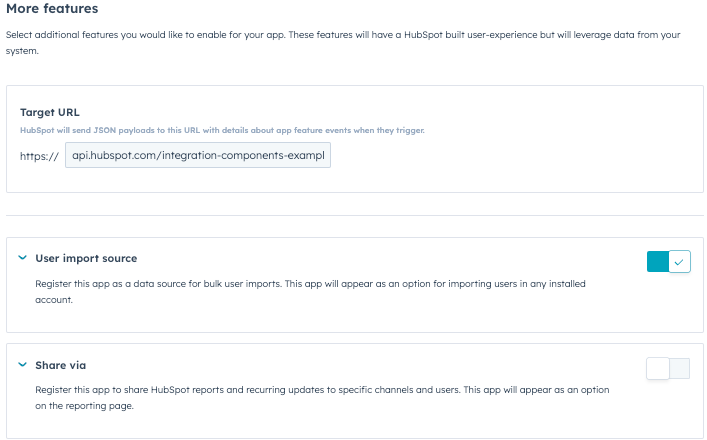
* In the left sidebar, click **More features**.
* In the *Target URL* section, enter the **URL** that HubSpot will make a `POST` request to when events trigger. Or, use this testing URL: `https://api.hubspot.com/integration-components-example/v1/sample-app-webhooks/beta-app`
* Click to toggle the **User import source** switch on.
* Click **Save changes**.
* Click the **name** of the app.
* In the left sidebar, click **More features**.
* In the *Target URL* section, enter the **URL** that HubSpot will make a `POST` request to when events trigger. Or, use this testing URL: `https://api.hubspot.com/integration-components-example/v1/sample-app-webhooks/beta-app`
* Click to toggle the **User import source** switch on.
* Click **Save changes**.
 ## Test the functionality
After setting up your two endpoints and configuring your app settings, you can test your endpoints out:
* [Install your app](/docs/apps/legacy-apps/public-apps/overview).
* In your HubSpot account, click the **settings icon** in the top navigation bar.
* In the left sidebar menu, navigate to **Users & Teams**.
* Click **Create user**.
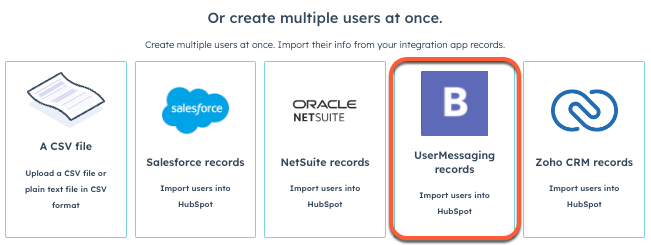
* In the *Or create multiple users at once* section, click your **app** to begin the import process.
* Follow the steps in [this article](https://knowledge.hubspot.com/account-management/add-hubspot-users#create-users) to import and set up your users.
## Test the functionality
After setting up your two endpoints and configuring your app settings, you can test your endpoints out:
* [Install your app](/docs/apps/legacy-apps/public-apps/overview).
* In your HubSpot account, click the **settings icon** in the top navigation bar.
* In the left sidebar menu, navigate to **Users & Teams**.
* Click **Create user**.
* In the *Or create multiple users at once* section, click your **app** to begin the import process.
* Follow the steps in [this article](https://knowledge.hubspot.com/account-management/add-hubspot-users#create-users) to import and set up your users.