> ## Documentation Index
> Fetch the complete documentation index at: https://developers.hubspot.com/docs/llms.txt
> Use this file to discover all available pages before exploring further.
---
id: bb7e06a8-6bde-4929-9468-b064403d97b3
---
# Use your installed app to share HubSpot reports to channels and users (BETA)
> Learn how to set up a feature so that any customer who has installed your app in their account can share HubSpot reports and dashboards with it.
export const PublicAppCreationSunsetBanner = () =>
As of June 23, 2026, legacy public apps can no longer be created. Existing legacy public apps will continue to be supported, but don't have access to the latest app features. Learn more about this sunset on the HubSpot Developer Changelog.
To get started building apps on HubSpot's developer platform, learn how to migrate an existing legacy public app or create a new app.
;
Learn how to set up the *Share With* feature to allow your public app to share HubSpot reports and recurring updates to specific channels and users. This means you'll be able to [share your HubSpot reports and dashboards](https://knowledge.hubspot.com/dashboard/email-or-export-reports-and-dashboards) with the installed app. This feature is only available for [public apps](/docs/apps/legacy-apps/public-apps/overview).
## Set up the Share With feature
Before you set up your app to use the *Share With* feature, you'll need to create and host four API endpoints that will accept `POST` requests from HubSpot when a customer who has installed your app shares their HubSpot reports and dashboards.
You'll need to set up the following endpoints to handle the four webhook event triggers:
* `CHECK_PERMISSIONS`
* `FETCH_RECIPIENTS`
* `FETCH_RECIPIENT`
* `SHARE_OBJECT`
Requests are sent with the HubSpot Signature. To ensure that the requests that are received are from HubSpot, they can be validated using the signature: [/apps/legacy-apps/authentication/validating-requests](/docs/apps/legacy-apps/authentication/validating-requests)
## Check permissions endpoint
The URL of the endpoint that returns account data should be structured like `https://BASE_PATH_OF_YOUR_SERVICE/feature/SHARE_VIA/event/CHECK_PERMISSIONS`.
HubSpot will provide the following fields in the body of the request:
```json theme={null}
// Example request body that HubSpot will send your hosted service
{
"portalId": 10,
"appId": 20,
"payload": {
"requiredPermissions": ["upload-file"]
}
}
```
The response you return when HubSpot makes a POST request to the endpoint should be a JSON-formatted object with the following fields:
```json theme={null}
// Example response you should return after a POST request from HubSpot
{
"portalId": 10,
"appId": 20,
"eventType": "CHECK_PERMISSIONS",
"payload": {
"hasAllRequiredPermissions": true
}
}
```
## Fetch recipients endpoint
The URL of the endpoint that returns account data should be structured like `https://BASE_PATH_OF_YOUR_SERVICE/feature/SHARE_VIA/event/FETCH_RECIPIENTS`.
HubSpot will provide the following fields in the body of the request:
```json theme={null}
{
"portalId": 10,
"appId": 20,
"payload": {
"recipientsFilter": {
"type": 1, // integer: 0 for Channel or 1 for User
"name": "Recipient" // substring which denotes filtering by name
},
"limit": 5,
"nextPageAfter": "hashkey" //string hashkey to denote the next page
}
}
```
The response you return when HubSpot makes a POST request to the endpoint should be a JSON-formatted object with the following fields:
```json theme={null}
{
"portalId": 10,
"appId": 20,
"eventType": "FETCH_RECIPIENTS",
"payload": {
"recipients": {
"total": 2,
"results": [
{
"id": "R2",
"name": "Recipient Two",
"type": 1
},
{
"id": "R4",
"name": "Recipient Four",
"type": 1
}
]
}
}
}
```
## Fetch recipient endpoint
The URL of the endpoint that returns account data should be structured like `https://BASE_PATH_OF_YOUR_SERVICE/feature/SHARE_VIA/event/FETCH_RECIPIENT`.
HubSpot will provide the following fields in the body of the request:
```json theme={null}
{
"portalId": 10,
"appId": 20,
"payload": {
"id": "R3",
"type": 0
}
}
```
The response you return when HubSpot makes a `POST` request to the endpoint should be a JSON-formatted object with the following fields:
```json theme={null}
{
"portalId": 0,
"appId": 0,
"eventType": "FETCH_RECIPIENT",
"payload": {
"recipient": {
"id": "R3",
"name": "Recipient Three",
"type": 0
}
}
}
```
## Share object endpoint
The URL of the endpoint that returns account data should be structured like `https://BASE_PATH_OF_YOUR_SERVICE/feature/SHARE_VIA/event/SHARE_OBJECT`.
HubSpot will provide the following fields in the body of the request:
```json theme={null}
{
"portalId": 10,
"appId": 20,
"payload": {
"sender": {
"id": 2387654 // HubSpot Id of sender
},
"recipient": {
"id": "R3",
"name": "Recipient Three",
"type": 0
},
"message": "New report for this week",
"objectMetadata": {
"id": 2334567,
"type": 2, // integer denotes Type of Object: 2 for Report
"name": "Chat Conversations",
"screenshotUrl": "https://api-na1.hubspotqa.com/filemanager/api/signed-url-redirect?portalId=10"
}
}
}
```
The response you return when HubSpot makes a `POST` request to the endpoint should be a JSON-formatted object with the following fields:
```json theme={null}
{
"portalId": 10,
"appId": 20,
"eventType": "SHARE_OBJECT",
"payload": {
"recipientUrl": "https://example.com" //optional redirect URL
}
}
```
Once you've set up your four endpoints, you can configure your app settings.
* In your HubSpot account, navigate to **Development**.
* In the left sidebar menu, navigate to **Legacy apps**.
 * Click the **name** of your app.
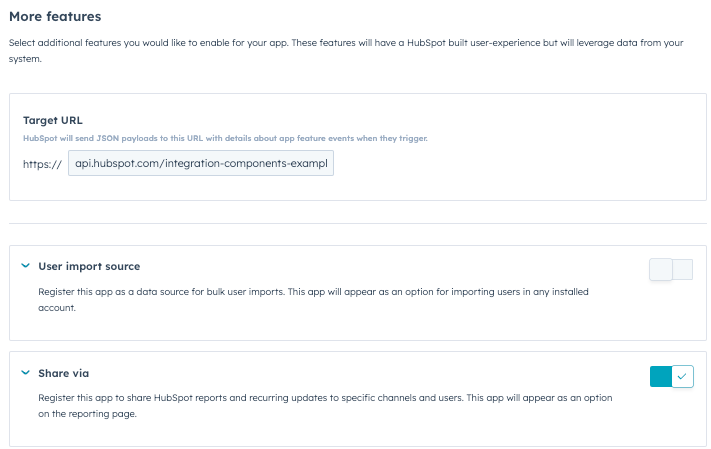
* In the left sidebar, click **More features**.
* In the *Target URL* section, enter the **URL** that HubSpot will make a `POST` request to when events trigger. Or, use this testing URL: `https://api.hubspot.com/integration-components-example/v1/sample-app-webhooks/beta-app`
* Click to toggle the **Share via** switch on.
* Click **Save**.
* Click the **name** of your app.
* In the left sidebar, click **More features**.
* In the *Target URL* section, enter the **URL** that HubSpot will make a `POST` request to when events trigger. Or, use this testing URL: `https://api.hubspot.com/integration-components-example/v1/sample-app-webhooks/beta-app`
* Click to toggle the **Share via** switch on.
* Click **Save**.
 ## Test the functionality
After setting up your four endpoints and configuring your app settings, you can test this feature:
* [Install your app](/docs/apps/legacy-apps/public-apps/overview).
* In your HubSpot account, navigate to **Reporting & Data** > **Reports**.
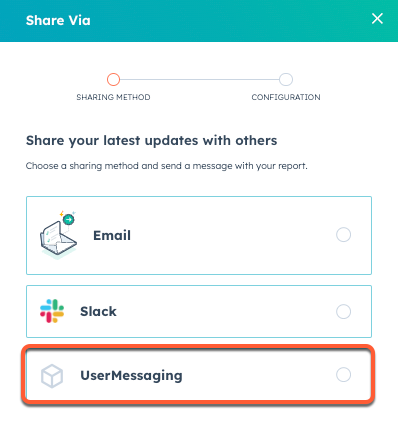
* Hover over a report and click the **Actions** dropdown menu. Then, click **Share Via**.
* In the right panel, select the **connected app** and click **Next**.
* Select the **frequency** of the message and which **channel or user** you're sending the report to.
* Enter an **optional message**.
* Click **Send now**.
## Test the functionality
After setting up your four endpoints and configuring your app settings, you can test this feature:
* [Install your app](/docs/apps/legacy-apps/public-apps/overview).
* In your HubSpot account, navigate to **Reporting & Data** > **Reports**.
* Hover over a report and click the **Actions** dropdown menu. Then, click **Share Via**.
* In the right panel, select the **connected app** and click **Next**.
* Select the **frequency** of the message and which **channel or user** you're sending the report to.
* Enter an **optional message**.
* Click **Send now**.