
Prerequisites
Ensure you’re running version8.0.0 or higher of the HubSpot CLI to access the latest set of supported MCP clients.
Set up the server
Follow the steps below to set up the Developer MCP server.Select a client
When prompted, select the clients you’d like to add the MCP server to. Use the arrow keys and spacebar to select your clients, then press Enter to proceed.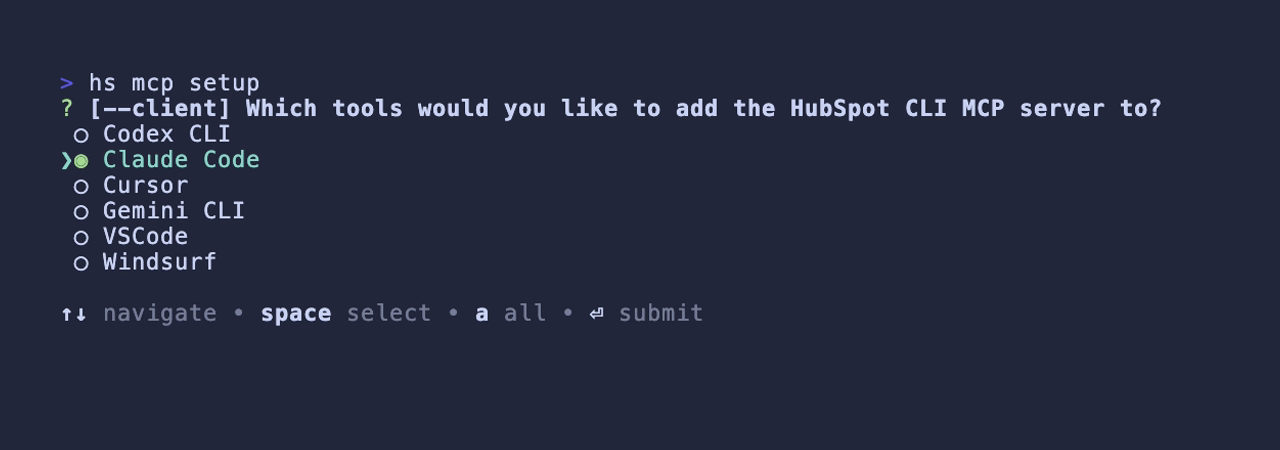 A success message will appear once setup is complete.
- In Claude Code, run the
/mcpcommand. You can then select HubSpotDev to view more information about its included tools and more.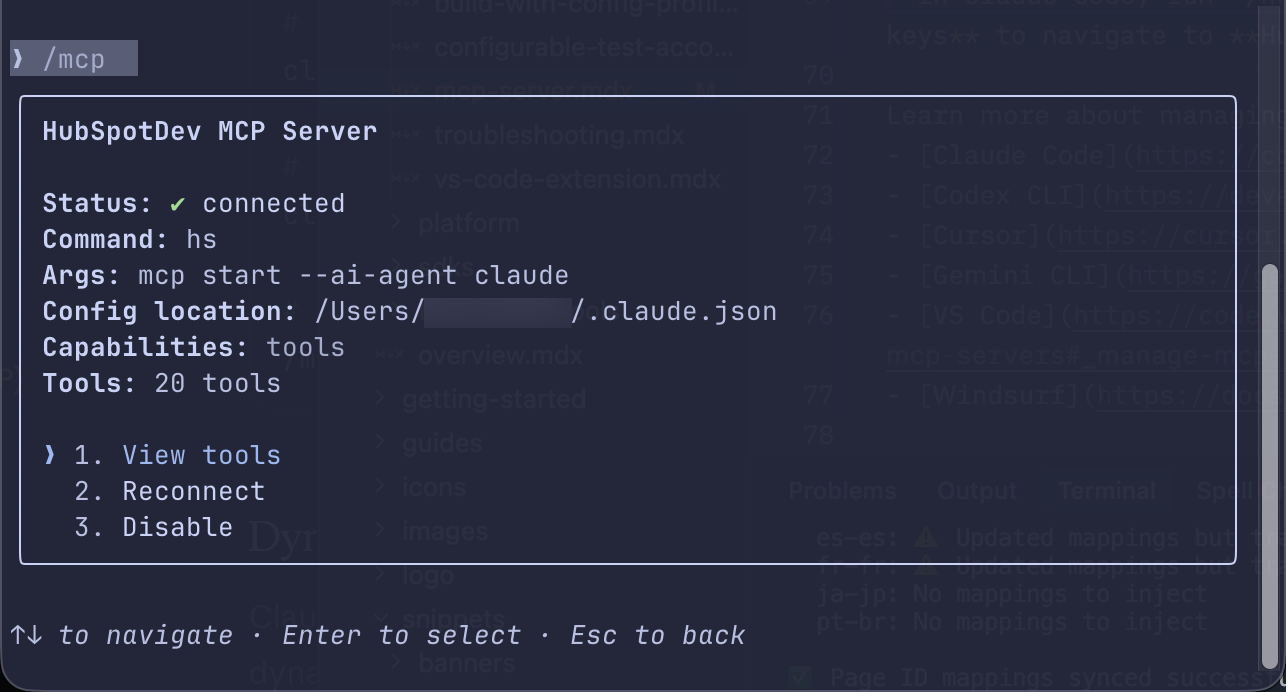
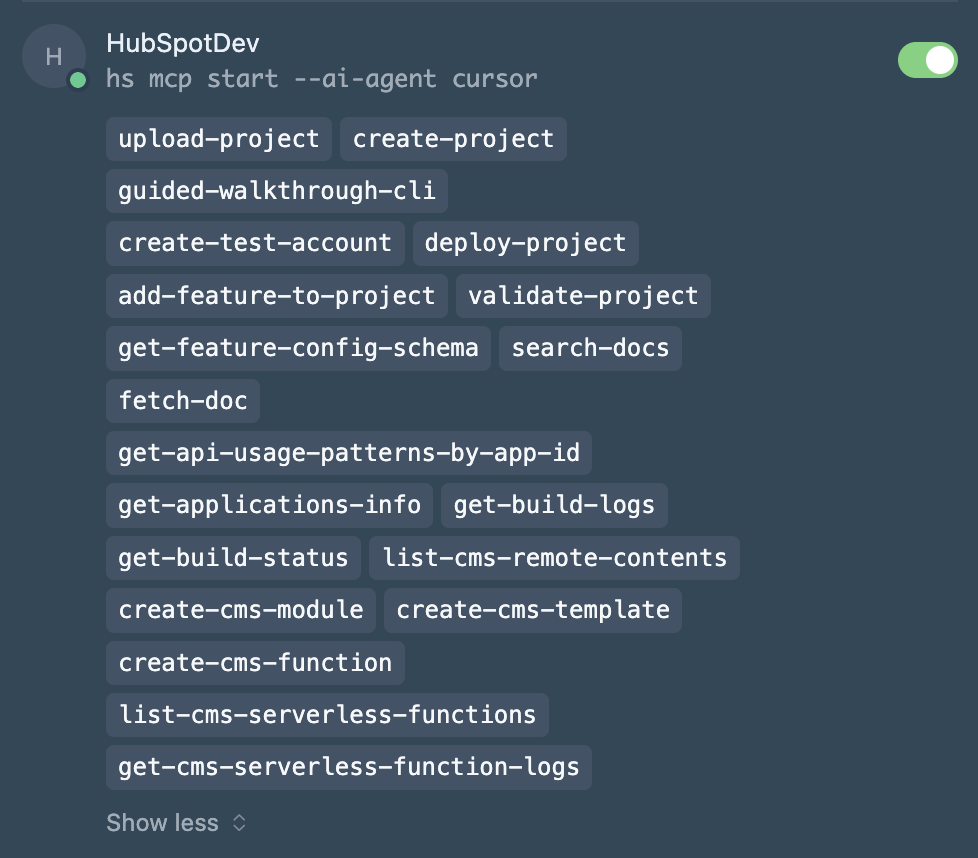
- In Cursor, navigate to Settings > Cursor Settings, then select Tools & MCP in the left sidebar. In the Installed MCP Servers section, you can view and manage the HubSpotDev server along with any other installed MCP servers.
Usage
With the MCP server set up, your client will be able to perform various HubSpot development tasks when prompted. Below is a list of the tasks you can complete using the Developer MCP server’s included toolset. Each task includes an example prompt to help you get started.Project management
-
Create a new project: generate a new HubSpot project with specified features and configuration options.
"Create a new project with one app card and a settings page." -
Add features to an existing project: add app features (e.g., app cards, workflow actions, and webhooks) to an existing project.
"Add a webhook to my existing project" -
Upload a project: upload your project to HubSpot (by default, automatically deploys after successful build).
"Validate my project, then upload it to HubSpot" -
Deploy a project: deploy a specific build or the most recent successful build of a project.
"Deploy build number 42 of my project" -
Validate project configuration: validate your local project configuration and identify potential issues prior to uploading.
"Validate my project and show me any issues" -
Get feature configuration schemas: retrieve JSON schemas for specific feature types to help configure your project’s metadata files.
"Get the schema for app card configuration"
Build monitoring and troubleshooting
-
Check build status: view the status of recent project builds or get detailed error information for a specific build.
"Check the status of my latest build" -
Access build logs: retrieve and analyze build logs to troubleshoot compilation errors, warnings, and other build issues. The AI assistant can proactively access and analyze these logs to identify and help resolve issues automatically.
"Show me the build logs for build ID 123 and help me fix any errors"
Test account management
Create test accounts: generate temporary HubSpot developer test accounts for local development, testing, and QA workflows with specified hub tier levels.
"Create a test account with Professional tier for all hubs"Documentation & guidance
-
Search documentation: find answers to common questions using the publicly available HubSpot developer platform documentation.
"Search the docs for information about CRM cards" -
Get CLI walkthroughs: receive step-by-step guidance on how to use the HubSpot CLI, including common commands for building, testing, and managing your apps.
"How do I authenticate with the HubSpot CLI?"
CMS content creation
-
Create CMS modules: generate new HubL or React modules for your CMS content.
"Help me add a React module to my existing project" -
Create CMS templates: generate templates for pages, emails, blogs, and other content types.
"Create a new page template called 'Product Landing'" -
Create serverless functions: generate new serverless functions with custom endpoints and HTTP methods.
"Generate a serverless function with a POST endpoint at /api/submit-form" -
List remote CMS content: view the contents of CMS directories in your HubSpot account.
"Show me all the CMS content in my account"
Serverless function management
-
List deployed functions: view all serverless functions currently deployed in your HubSpot account, including their routes and configurations.
"List all my deployed serverless functions" -
Access function logs: retrieve and analyze logs from your deployed serverless functions for debugging purposes.
"Get the logs for my deployed serverless function at /api/contacts"
App analytics
-
Analyze API usage patterns: retrieve detailed usage metrics and trends for your app, including HubSpot account adoption statistics.
"What is the usage pattern summary for my app?" -
Assess churn risk: identify retention risks and potential churn for users who’ve installed your app.
"What is the churn risk assessment for my app?" -
Get app information: list all applications available in your account with their IDs and names for further analysis.
"Show me all my apps and their IDs"
Example workflow
Here’s an example of how you might use the MCP server to create and deploy a project:"Create a test account with Enterprise tier for all hubs.""Create a new project named 'MyApp' with an app card for contact records. The card should include a button that opens a modal when clicked.""Upload the project to the test account I just created.""Check the build status and report any errors.""I added more components to the card, and now the card shows an error during local development: 'Unable to initialize extension'. Check the NewCard.tsx file and fix any issues."