Add a scheduling page and/or form to an app listing
In your developer account, navigate to Marketplace > App Listings.
Hover over a listing and click More, then select Edit. Learn more about creating an app listing.
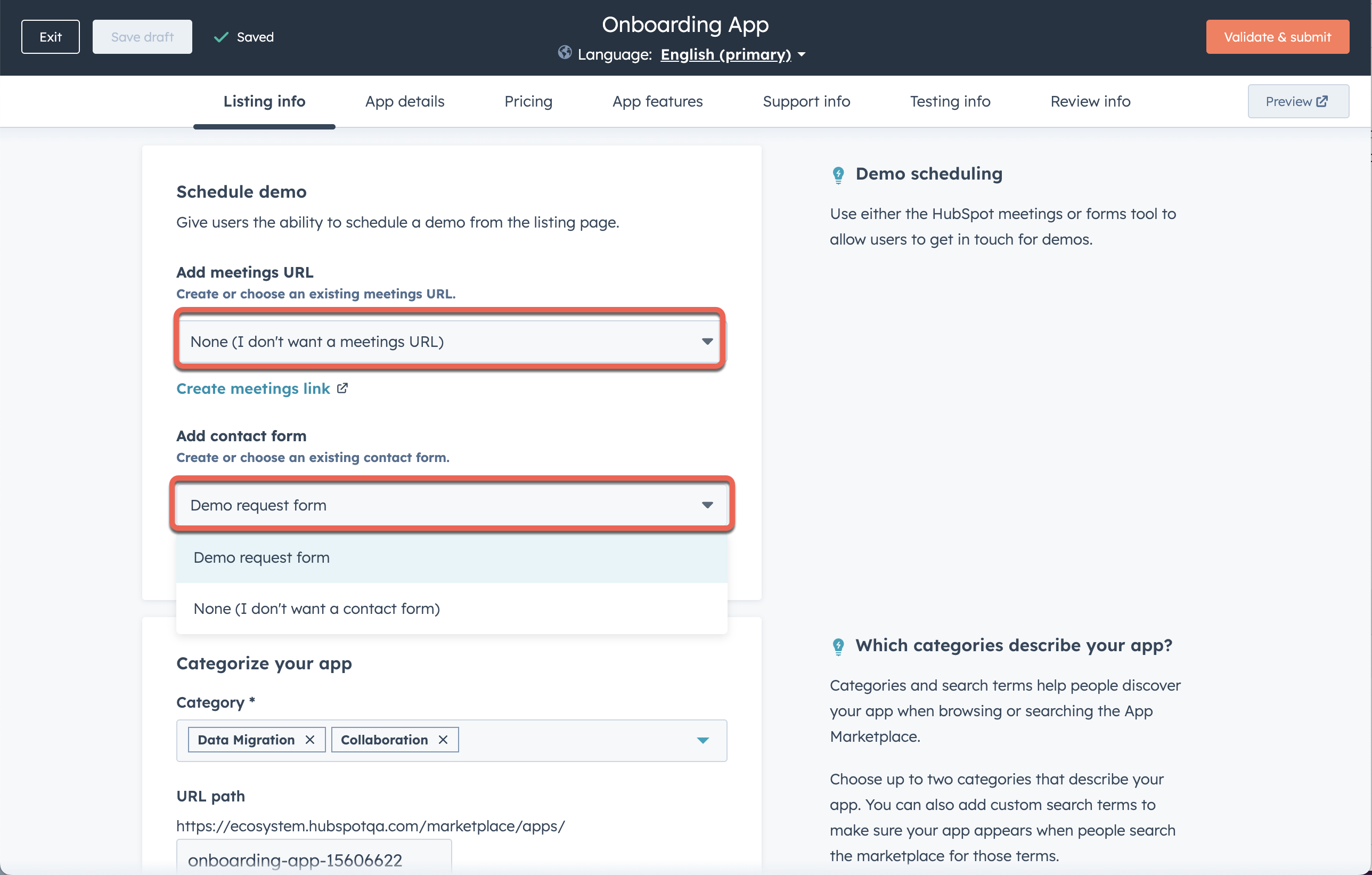
On the Listing Info tab, add options for scheduling a demo:
To add a meetings link, click the Add meetings URL dropdown menu and select a scheduling page. To create a new scheduling page, click Create meetings link. Learn more about working with scheduling pages.
To add a form, click the Add contact form dropdown menu and select a form. To create a new form, click Create contact form. Learn more about working with contact forms.
In the top right, click Validate & submit.
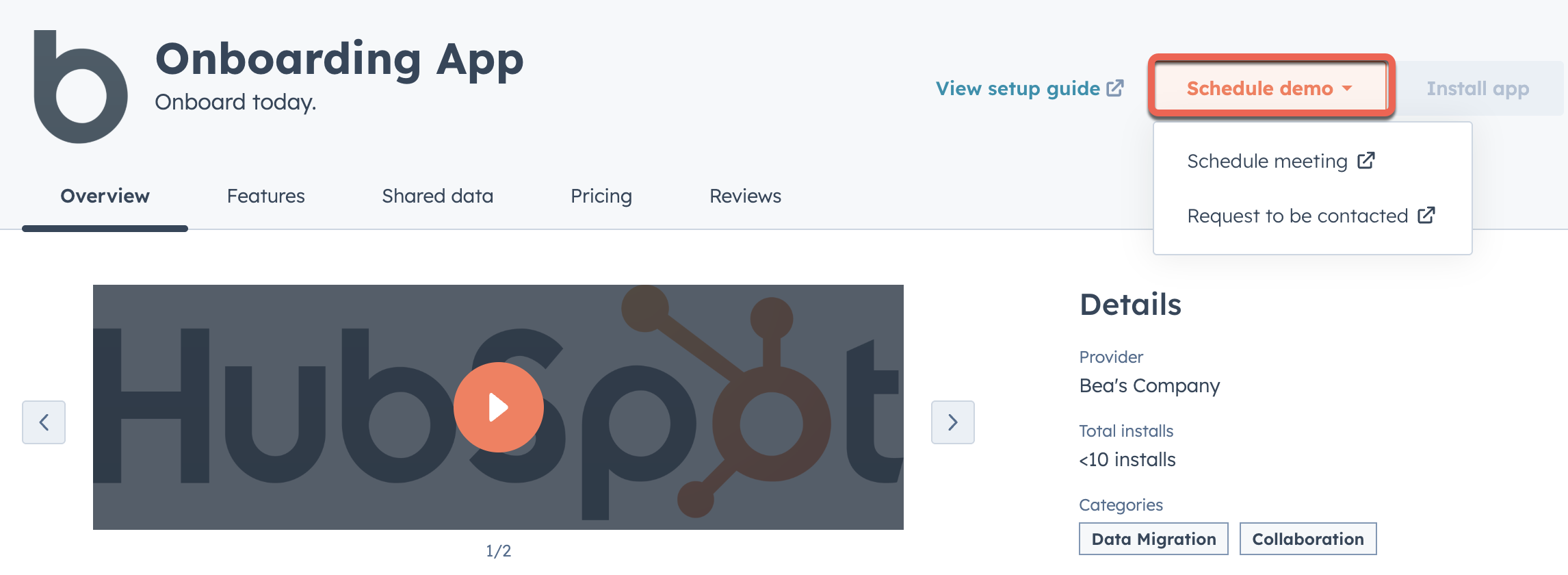
Once your changes have been approved, your customers will see an option in the top right of your app listing to schedule a demo or request to be contacted. If you’ve added a scheduling page and a contact form, both options will be available in the Schedule demo dropdown menu.
Last modified on March 30, 2026
Was this page helpful?
Assistant
Responses are generated using AI and may contain mistakes.