
Create a CMS app
Create a new CMS app with a boilerplate directory structure to support specific features.
Flags
CMS serverless functions
The commands below allow you to serverless functions in a CMS app.Create a CMS serverless function
Create a new serverless function in a CMS project.
Flags
List CMS serverless functions
List currently deployed serverless functions in a CMS project.View CMS serverless function logs
Review logging for a specific CMS serverless function.
Flags
Interacting with the developer file system
Using the CLI, you can interact with the developer file system, which is the file system in the Design Manager. These commands enable you to create new assets locally, such as modules and themes, upload them to the account, list files in the HubSpot account, or download existing files to your local environment. To upload and download files from the files tool instead, learn more about files tool commands.List files
List files stored in the developer file system by path or from the root. Works similar to using standardls to view your current directory on your local machine.
Fetch files
Fetch a file, or a directory and its child folders and files, by path. Copies the files from your HubSpot account into your local environment. By default, fetching will not overwrite existing local files. To overwrite local files, include the--overwrite flag.
Flags
Upload files
Upload a new local asset to your HubSpot account. Changes uploaded through this command will be live immediately.
Flags
To upload files to your account’s files tool (not the Design Manager), use the
hs filemanager commands. Learn more.Set a watch for automatic upload
Watch your local directory and automatically upload changes to your HubSpot account on save. Any changes made when saving will be live immediately. Keep the following in mind when usingwatch:
- Deleting watched files locally will not automatically delete them from HubSpot. To delete files, use
--remove. - Renaming a folder locally will upload a new folder to HubSpot with the new name. The existing folder in HubSpot will not be deleted automatically. To delete the folder, use
--remove.
Flags
Move files
Moves files within the developer file system from one directory to another. Does not affect files stored locally.
Flags
Delete files
Deletes files, or folders and their files, from your HubSpot account. This does not delete the files and folders stored locally.
Flags
Ignore files
You can include a.hsignore file to specify files that should not be tracked when using the CLI. This file functions similar to how .gitignore files work. Files matching the patterns specified in the .hsignore file will not be uploaded to HubSpot when using the upload or watch commands.
Convert JavaScript fields to JSON
Save the output of a JavaScript fields file asfields.output.json in the same directory as the JavaScript fields file.
Lint a local directory
Validate the contents of a directory in your CMS project.
Flags
Create a module
Create a new module in your CMS project.
Flags
Create a theme
Create a new theme in your CMS project.
Flags
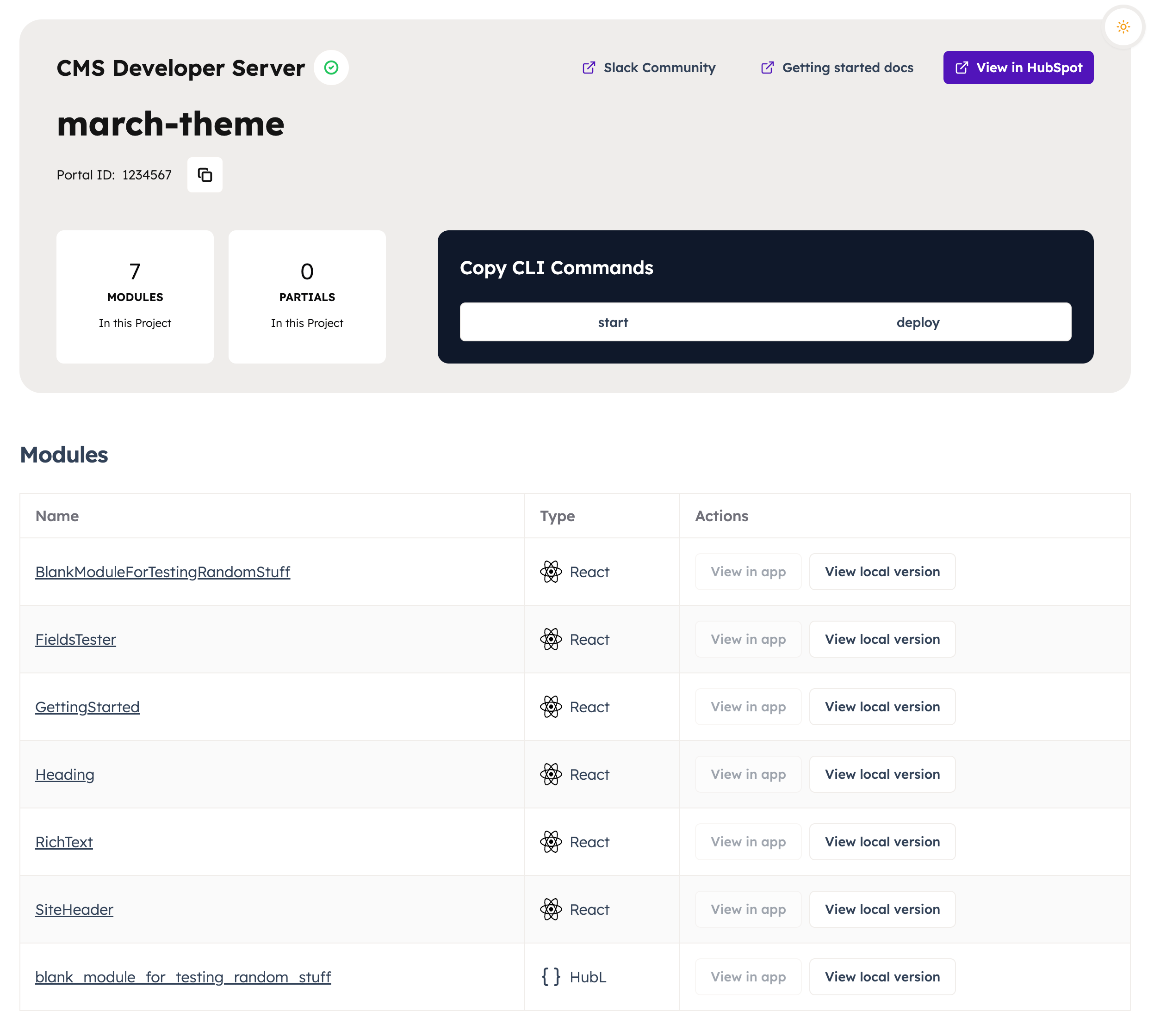
Locally preview theme
When developing a theme, you can runhs cms theme preview in the theme’s root directory (src/theme/my-theme/) to render a live preview of your changes without uploading files to the account.
Once run, this command will run a watch process so that any saved changes are rendered in the preview.
Flags
The main page at https://hslocal.net:3000/ will display a list of your theme’s templates and modules, all of which can be individually previewed by clicking the provided links.
Evaluate themes and templates for SEO and accessibility
Uses Google’s Lighthouse tools to score the quality of your themes and templates for their adherence to the following categories:- Accessibility
- Web best practices
- Performance
- PWA
- SEO
- Landing pages
- Website pages
- Blog posts
- Blog listing page
Retrieve an existing React theme
To fetch an existing React theme from your account, use the following command:Generate theme field selectors for in-app highlighting
When creating a theme, use the following command to generate aneditor-preview.json file which maps CSS selectors to theme fields. This enables content creators to see which theme elements will be impacted by updates to a field’s styling options.
After running the command, you’ll need to review and refine the editor-preview.json file to ensure that fields and selectors are mapped properly. While this command will make a rudimentary guess as to which fields affect which selectors, you’ll need to make corrections based on how your theme is built. For example, this command cannot detect when modules are overriding styling or when you’re using macros. Learn more about theme editor field highlighting.
Modes
The--cms-publish-mode or -m option allows you to determine if local changes are published when uploaded to HubSpot. This option can be used in each command or set as a default in your hubspot.config.yml file.
The two options for --cms-publish-mode are --cms-publish-mode=draft and --cms-publish-mode=publish.
The following is the order of precedence for setting --cms-publish-mode:
- Using
--cms-publish-modein a command will override all other settings. - Setting a
defaultModefor each account in yourhubspot.config.yml file, removes the need to use--cms-publish-modein each command. It will override the top-level setting. - Setting a
defaultModeat the top-level in yourhubspot.config.yml file, sets a default--cms-publish-modefor all accounts. It will override the default behavior. - The default behavior for
--cms-publish-modeispublish.
Marketplace asset validation
The CLI provides a suite of automated tests you can perform on your assets to get them in-line with the marketplace requirements prior to submitting. Passing all automated tests does not mean you will for sure pass the review process, further review is conducted to ensure quality beyond what can be easily automated.Validate theme
The theme validation command allows you to quickly run automated tests on your theme to identify problems that need to be fixed prior to submission to the asset marketplace. These will be returned in your CLI as a list of [error] and [success] messages separated into groups that represent types of assets within a theme. Before you can validate a theme, you’ll first need to upload it to your account withhs upload. Then, run the following command to validate the uploaded theme.
Validate module
Similar to validating a theme, this command allows you to quickly run automated tests on a module to identify problems that need to be fixed prior to submission to the asset marketplace. Before you can validate a module, you’ll first need to upload it to your account withhs upload. Then, run the following command to validate the uploaded module.