
Prerequisites
- Ensure you’ve installed the latest version of the HubSpot CLI.
- Ensure your app is on the projects framework, using version
2025.2or newer. Learn how to migrate a public app to the projects framework. - It’s recommended to create a configurable test account so that you can build and test in an isolated environment.
Create an app card to replace the legacy CRM card
To start the migration process, create an app card that will replace your legacy card. When creating your replacement app card, you can either:- Start from scratch: create a new app card. Choose this option if you want to use new functionality and design elements to redesign your card.
- Use HubSpot’s converter app card as an example: use the Legacy CRM Card Converter GitHub sample code to create an app card based on the design and functionality of a legacy CRM card. Choose this option if you want to quickly add a replacement that works and looks as close as possible to your legacy CRM card.
Redesign by creating a new app card
To start from scratch, follow the instructions to create a new app card. React-based app cards can include more design elements than your existing legacy card, such as images, forms, and tables. With more UI components and data fetching capabilities, app cards give you the opportunity to design dynamic experiences embedded within HubSpot to meet your users where they work. Use the Figma design kit to plan your designs, or refer to the components reference to get started. During beta testing, you can enable the app card for a subset of your users by using feature flags. Once your new app card is ready, you can add it to the app with the legacy CRM card to begin the migration process.Convert a legacy CRM card into an app card
If you want to quickly convert your legacy CRM card to an app card, refer to the Legacy CRM Card Converter GitHub sample for guidance. This sample provides an app card that works like a legacy CRM card to help you test and develop a new app card before migrating. The converter fetches data from an API endpoint to display tiles, expandable content, and action buttons that work almost identically to your legacy CRM card. Refer to the README.md for instructions and more details, including the differences between the legacy CRM card and the converter app card. Once your new app card is ready, you can add it to the app with the legacy CRM card to begin the migration process. If you want to redesign the card later, you can update the app card design as needed.Add the app card to the app with the legacy CRM card
Once you’ve set up the replacement app card, add it to the project with the legacy CRM card.- Copy the contents of the
cardsfolder of the development project. - Paste the card content in the
cardsfolder of the app with the legacy CRM card. - Upload the project (
hs project upload). Theuidof the replacement card will be shown as processing during build and deploy. - Verify the app card displays in installs with scopes by adding it to views.
Replace the legacy CRM card with the app card in user accounts
Once the new app card is included in your app, migrate the legacy card to the new app card.- During the migration: users will continue to see the legacy CRM card in their views. Some users may temporarily see both the legacy CRM card and the app card in some views, but they will not lose access to the cards in your app.
- When a migration is complete: the legacy CRM card will be replaced by the app card in all user views. The legacy CRM card will be hidden and users will not be able to add it to views.
Please note: once the card view migration has started, it cannot be reversed. Be sure the app card works as intended through beta testing before replacing the card in all user views.
Please note: if your legacy CRM card supports tickets, an app card must be enabled for the
helpdesk.sidebar location for it to appear in the help desk workspace. This means you need two app cards to support existing legacy CRM cards for tickets: one for the crm.record.sidebar location and one for the helpdesk.sidebar location. They will need different titles, and you need both app card IDs to undertake migration.Replace a card in the projects UI
To migrate from within HubSpot:- In your HubSpot account, navigate to Development. Then, click the name of your project.
- If your project has legacy CRM cards, a migration banner is displayed with a list of the cards to migrate. At the bottom of the banner, click Review & migrate.

- In the right panel, review the migration details, then click Next to begin a card migration.
- Select the legacy CRM card to migrate.
- Select the replacement app card to which your legacy card will be migrated. App cards are only shown as options if they are compatible replacements for the legacy card.
- If your legacy CRM card supports tickets, select a Helpdesk sidebar card to replace the card displayed in the help desk workspace.
- If you’ve selected a replacement card used in a previous migration, select the Allow consolidating multiple legacy CRM cards into one app card checkbox to confirm that you’re consolidating multiple legacy cards into one new app card.
- Click Migrate, then in the dialog box, click Migrate to confirm. Once the migration has started, it cannot be stopped or reversed.

- The migration process will begin and progress is displayed in the panel. If your app has many installs, it may take a few minutes.
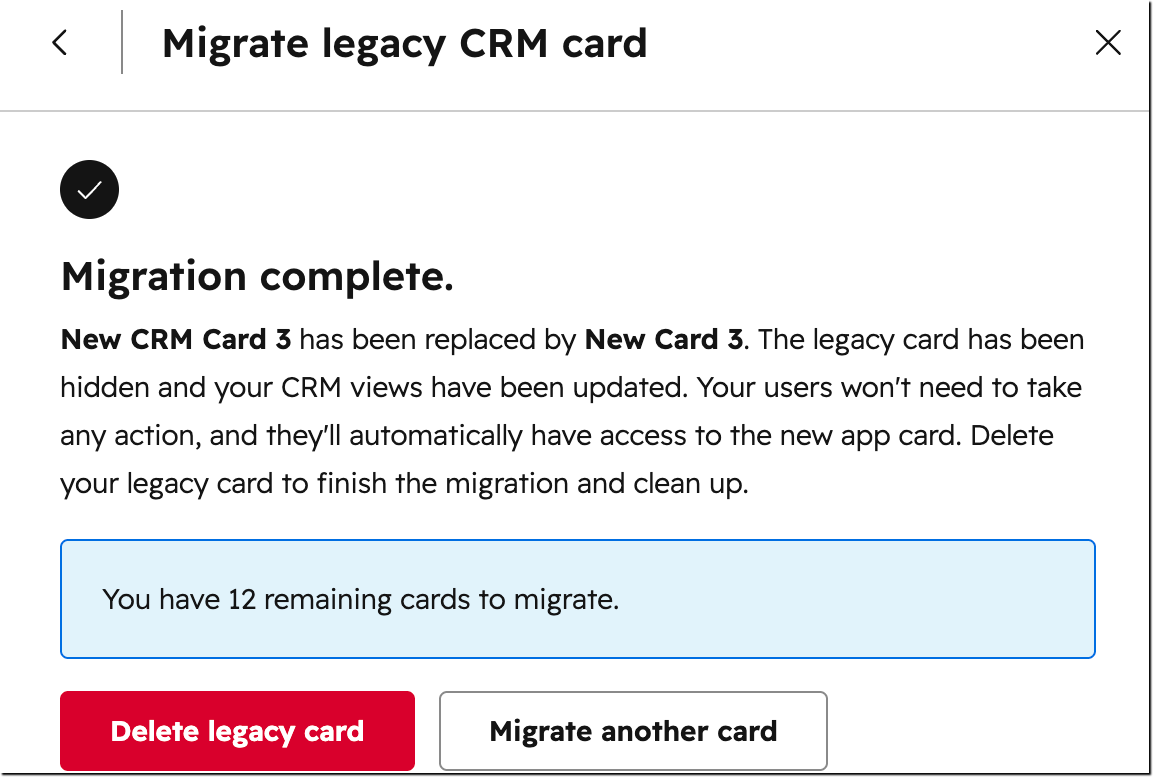
- When the migration is finished, the panel will show the status Migration Complete.
- To delete the legacy CRM card, click Delete legacy card. In the dialog box, click Delete to confirm. You can delete at a later time or it will be removed when legacy CRM cards are deprecated.
- To begin migrating another legacy CRM card, click Migrate another card.
Replace a card with the migrate views API
To use the migrate views API endpoint to replace legacy CRM cards:- Copy the values for the following fields:
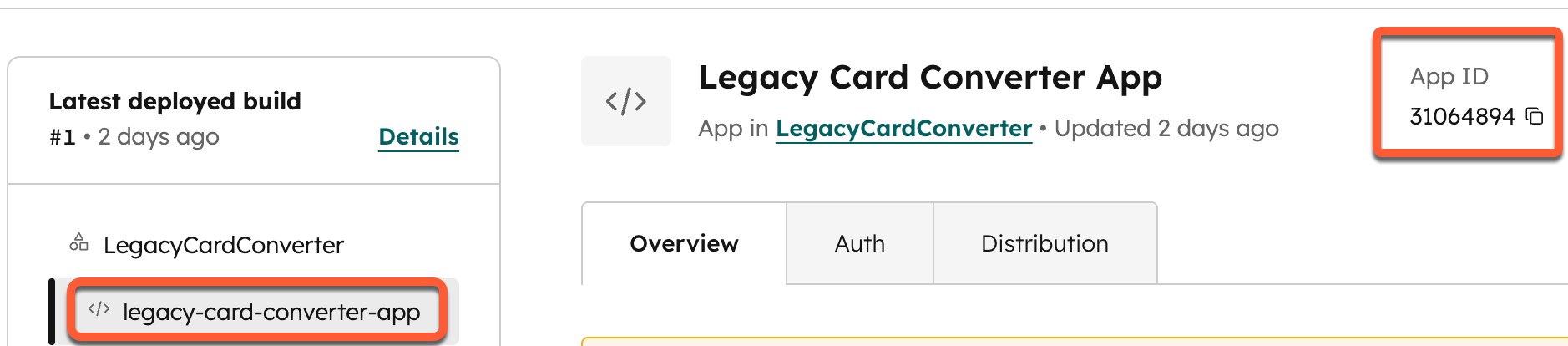
appId,appCardId,legacyCrmCardId, and if your legacy CRM card supports tickets,helpdeskAppCardId. Retrieve cards to get the legacy card ID and view projects in HubSpot to get the app, app card, and help desk app card IDs.

- Make the following call to the migration endpoint (
/crm/v3/extensions/cards-dev/{appId}/views/migrate).
appCardId is already associated with another legacy CRM card migration. This prevents multiple legacy CRM cards from being migrated into a single app card. To consolidate multiple legacy CRM cards into a single app card, set allowDuplicateAppCardIds in the request body to true.
- The migration process will begin and the API will return a message summarizing the progress. View updates are processed asynchronously. You can safely call the endpoint again with the same request body to check progress. Retrying the endpoint will not duplicate work or cause adverse effects.
- Once the migration is complete, the following message will be returned.
Delete unused legacy CRM cards
It is safe to delete a legacy CRM card once a migration is complete. This process will have no impact on end users and they’ll automatically have access to the new app card. Legacy CRM cards will be removed from customer views on November 2, 2026, and the migration UI and migrate API will be discontinued after December 1, 2026, as part of the deprecation of legacy CRM cards. Complete your migration before December 1, 2026.Delete legacy CRM cards in the projects UI
To delete a migrated card from within HubSpot:- In your HubSpot account, navigate to Development. Then, click the name of your project.
- At the bottom of the migration banner, click Review & migrate.
- In the right panel, click Next.
- Click to expand the Previously migrated cards section.
- Next to the card’s name, click Delete. In the dialog box, click Delete to confirm.

Delete legacy CRM cards via API
To delete a replaced legacy CRM card, make aDELETE request to /crm/v3/extensions/cards-dev/{appId}/{cardId}?hapikey={developerApiKey}. Include the appId and cardId values of the legacy CRM card.
Once the legacy CRM card is deleted, there will no longer be warnings about the legacy CRM card existing in your app.