
- Props-based approach: destructure
actionsfrom the callback passed tohubspot.extend(), then pass it to your component as a prop. - Hook-based approach: call the
useExtensionActionshook directly within your component.
Note that some UI components include a set of actions separate from the SDK actions below, such as the CRM action components.
Universal actions
Universal actionsSupported in all extension points:
settings, home, crm.record.tab, crm.record.sidebar, crm.preview, helpdesk.sidebarDisplay alert banners
Use theaddAlert method to send alert banners as a feedback for any actions to indicate success or failure. addAlert is a part of the actions object that can be passed to extension via hubspot.extend. If you instead want to render an alert within a card, check out the Alert component.
.png) For example, the code below results in an app card that displays a success alert after fetching data from an external source. Note that the
For example, the code below results in an app card that displays a success alert after fetching data from an external source. Note that the addAlert action is passed into hubspot.extend() and the Extension component, then is triggered when the hubspot.fetch() function successfully executes.
Reload page
Use thereloadPage action to reload the current page. This action can be accessed through the actions argument (actions.reloadPage).
Copy text to clipboard
Use thecopyTextToClipboard action to copy text to your clipboard. This action can be accessed through the actions argument (actions.copyTextToClipboard) and returns a promise that resolves once the system clipboard has been updated. Its functionality is provided by the Clipboard: writeText() method and follows the same requirements.
This action only works after the user has interacted with the page after loading (transient activation).
Open overlays
To add another layer of UI to your extension, you can include overlays using the Modal and Panel components.Modal: a pop-up dialog box best suited for short messages and action confirmations. A'danger'variant is included for destructive actions, such as deleting a contact.Panel: a slide-out sidebar best suited for longer, compartmentalized tasks that users might need to perform, such as multi-step forms. Includes a'modal'variant to obscure page content outside of the panel to focus the user on the panel task.
- Add the
overlayprop to a Button, LoadingButton, Link, Tag, or Image component. - Add the
ModalorPanelcomponent into theoverlayprop.
- Panel
- Modal
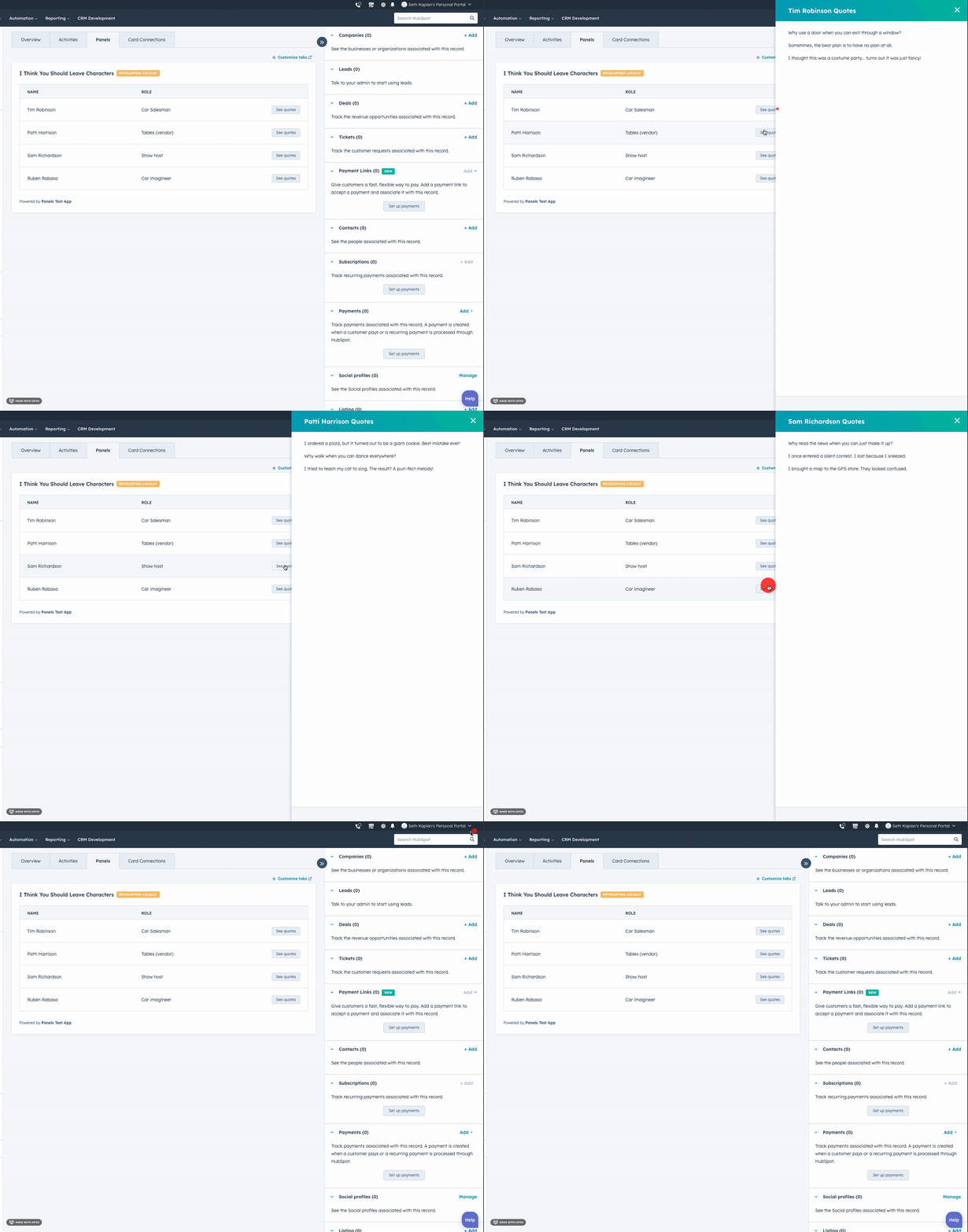
.gif)
Open an iframe in a modal
Use theopenIframeModal action to open an iframe in a modal window. This action accepts two arguments: a payload object that describes the modal, and an optional callback function that runs when the modal is closed.
The payload object for openIframeModal includes the following fields:
For example, the following code would result in an extension that opens an iframe on button click. The iframe is configured to contain the Wikipedia homepage with a height and width of 1000px and no padding. Upon closing the modal, a message will be logged to the console.
window.postMessage to signal that the user is done. The following messages are accepted:
{"action": "DONE"}: the user has successfully completed the action.{"action": "CANCEL"}: the user has canceled the action.
uri you passed into the openIframeModal action. If the domains do not match, the message will be ignored.
CRM property actions
CRM property actionsOnly available in
crm.record.tab, crm.record.sidebar, crm.preview, helpdesk.sidebarFetch CRM property data
There are multiple ways to fetch CRM property data via the SDK:- The
useCrmPropertieshook, which fetches properties from the current CRM record. - The
fetchCrmObjectPropertiesaction, which fetches property data client-side at extension load time. This method is described below. propertiesToSend, which can be included in yourhubspot.fetch()functions to fetch property data on the back-end at function invocation time.- Use GraphQL to query CRM data through the
/collector/graphqlendpoint. Learn more about querying CRM data using GraphQL.
fetchCrmObjectProperties method, you can get property values from the currently displaying CRM record without having to use HubSpot’s APIs. This method is a part of the actions object that can be passed to the extension via hubspot.extend. You’ll first need to add the object to objectTypes inside the card’s .json config file. The objects you specify in objectTypes will also set which CRM objects will display the extension.
fetchCrmObjectProperties is formatted as:
Refresh properties on the CRM record
UserefreshObjectProperties to refresh the property data on the CRM record, and any CRM data components on the record without needing to refresh the page. This includes cards added to the record through HubSpot’s UI. This method will work for the CRM objects that you include in the extension’s .json file in the objectTypes array.
Listen for property updates
UseonCrmPropertiesUpdate to subscribe to changes made to properties on the CRM record and run hubspot.fetch() functions based on those changes. This only includes changes made from within the HubSpot UI, not property updates from outside the UI, such as via APIs. This action is intended to be used like a React hook.
The full API for this method is as follows:
error argument to the callback.
Upload files
While there is no UI component for uploading files, there are a few ways you can upload files:- Create a custom file type property, then use a CRM property list component to display and manage the property from CRM records. You can upload up to 10 files per file property, and file uploaded via file properties have the same size and type limitations as files uploaded to the file manager.
- Include an iframe modal in the extension that loads an upload page, then upload files through the iframe.